Asset Library
The asset library is the hub for your images and videos across profiles. Whenever you add an asset to an ad, that media is automatically added to your asset library for future use. You can use your library when creating ads in Max Campagins.
In the asset library, you can:
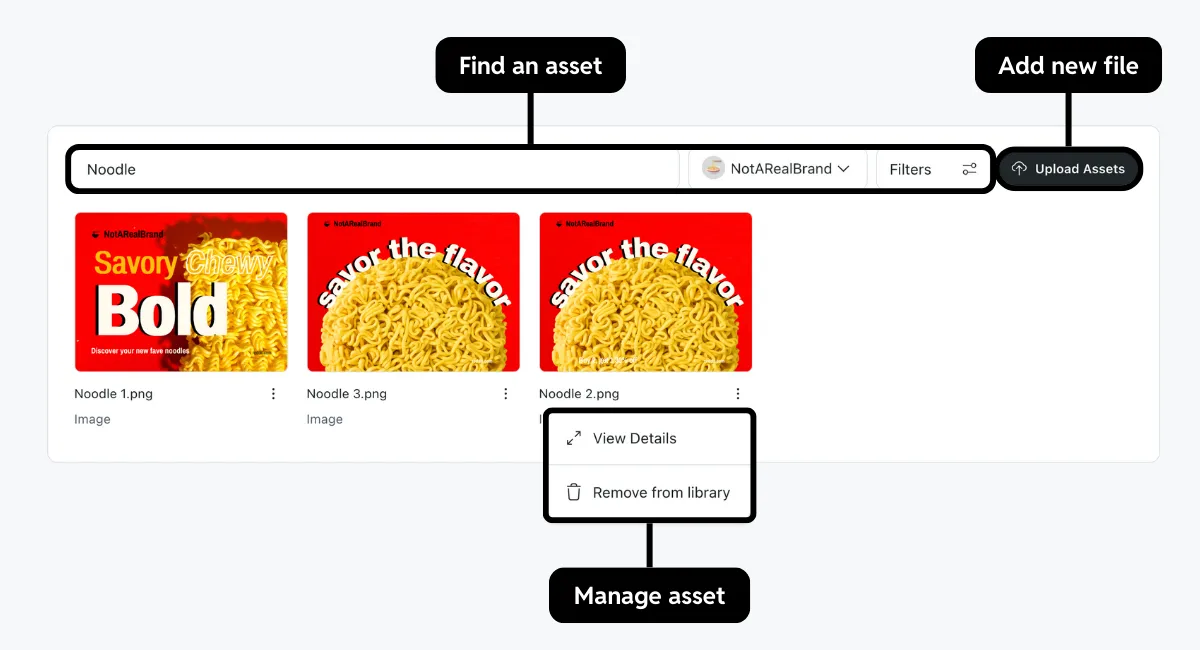
- Add a new file: Upload new media to use for ads. See our file limitations.
- Find an asset: Search for an asset by its name or filter by file type. You can also choose a different profile to see the assets associated with it.
- Manage an asset: Select ⋮ to open more options.
- Edit an asset: Choose View Details to rename a file.
- Delete an asset: Choose Remove from library to delete it from your library. You can also select multiple files to delete in bulk.
Removing an asset from your library won’t affect any ads using that asset.:::
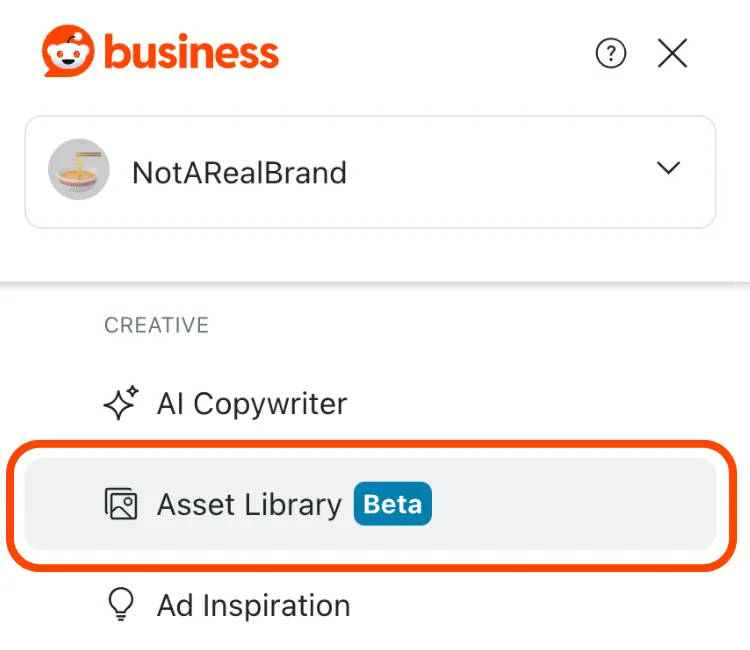
This library can be accessed in Ads > Creative > Asset Library from the main menu.
File limitations
The following table lists requirements for uploading to the asset library. We strongly recommend looking at our ad unit specifications for recommendations and limitations for your ad type.
| Format | PNG, JPEG, MP4, or MOV |
|---|---|
| Maximum size |
|
Things to know
- The library automatically filters out duplicate files. Check whether your asset already exists if something went wrong during your upload.
- Uploading files with the same name won’t overwrite the existing one in the library.
- Versioning isn’t currently supported.
Recommendations
- If you’re sharing a profile with a business, make sure to communicate before removing assets that others may want to use.
- Check our ad unit specifications for detailed recommendations and limitations based on your ad type.
Learn more
Campaign Setup
- Use a creative asset for your ad with Advanced or Simple Create
- Preview and test your ad